
Introduction
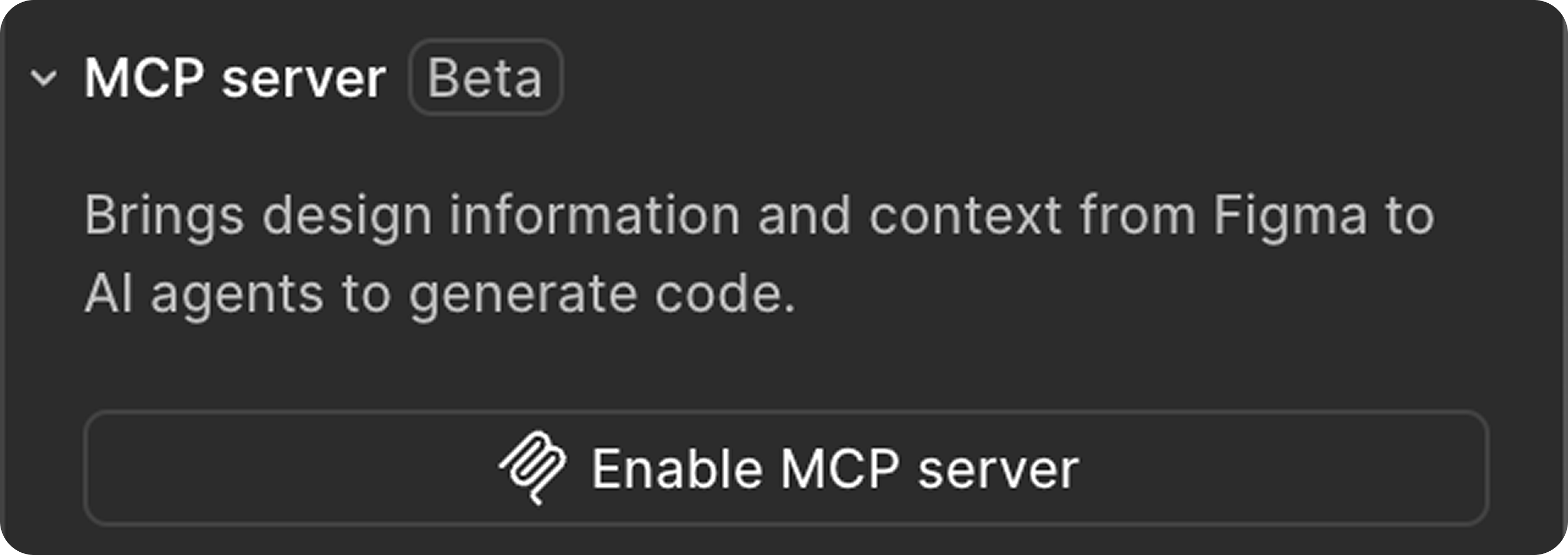
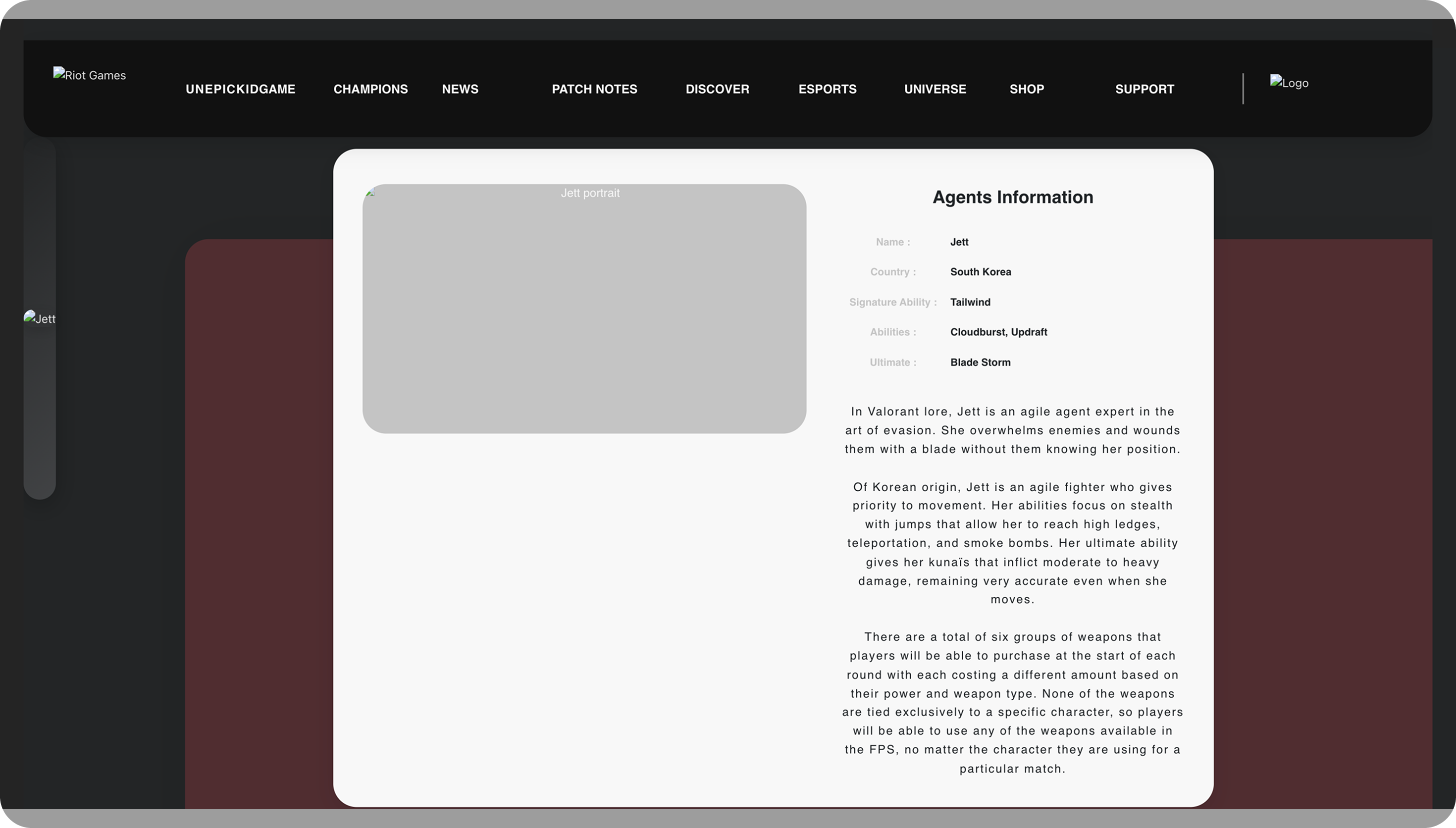
We tested Figma’s new Dev Mode MCP Server in a real-world setup, integrating it with Cursor AI code editor to explore how this toolchain could speed up the Figma-to-Vue-frontend workflow. Our test aimed to convert a Figma design into a Vue application using MCP-powered code generation.
Key results:
Setup time:
- Setting up the Figma MCP connection took less than 30 minutes
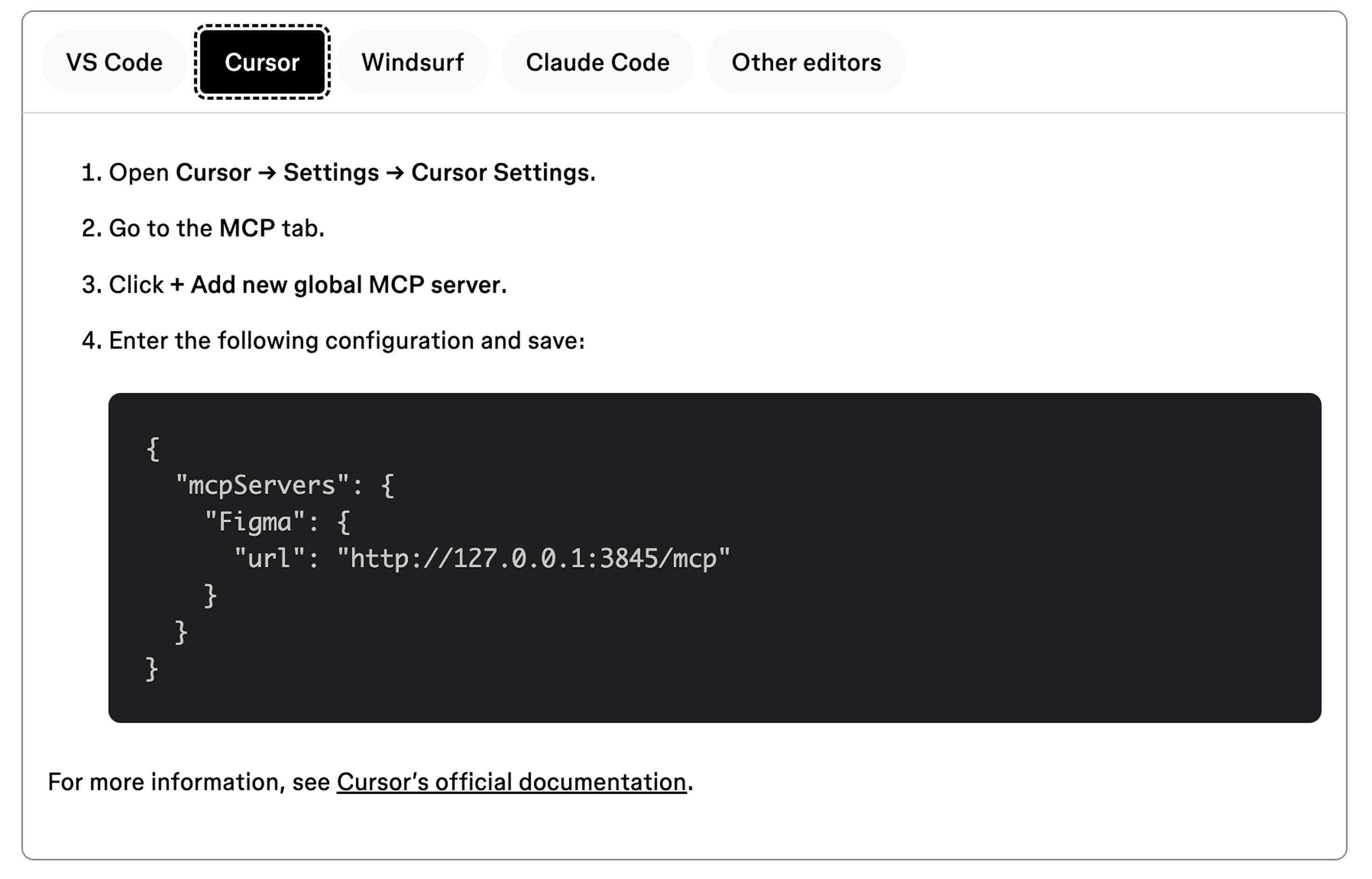
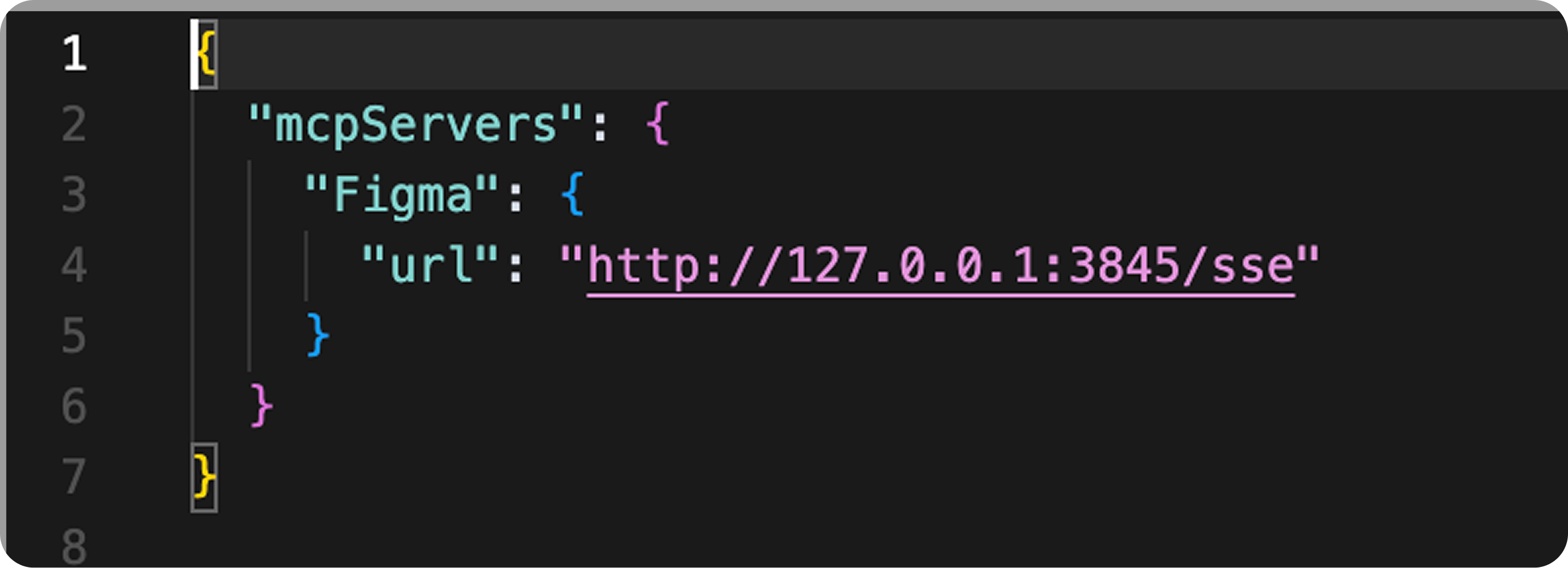
- Required: Dev Seat in Figma + small config in Cursor
- If you’re a developer/designer is a part of organization – ask Figma admin to add person to a Figma Team and assign, at least, Dev seat.
If you’re a developer/designer is a part of organization – ask Figma admin to add person to a Figma Team and assign, at least, Dev seat.
Cost Summary (per person):
- Figma Dev Seat: $25/month (Org tier)
- Cursor (AI Code Editor):
- – Free (Trial) used for test
- – Potential full cost: $20 (Individual) or $40 (Team)
Usage approach & recommendations:
Best use cases:
- Ideal for basic templates, UI scaffolding, and early-stage component structure
- Can speed up dev time by 10–15%, especially for standard design-to-code flows
- Effective when:
- – Design files follow clear naming/styling conventions
- – Layering is simple (MCP struggles with complex multi-layered compositions)
Agent usage strategy:
- Use direct component references or links when precise design fidelity is required
- Ask the AI agent what can be implemented automatically – helpful for estimating quick wins
- Expect decent fidelity with project color palettes, layout conventions
Known limitations:
- Occasional loss of connection between Cursor and MCP (requires restarting Cursor)
- Some components generate “hallucinated” results if direct Figma links were not provided
- Final output even for small components often requires manual adjustments and fine-tuning
Start with clean, simple designs:
- Use Figma templates with consistent layer names and structure
- Avoid overcomplicated nesting or deeply grouped elements early on
- Flat designs and atomic components yield better AI responses
Always use dev mode + selection links
- Linking specific components or layers in Dev Mode significantly improves generation accuracy
- Without links, MCP may infer styling and structure with limited precision
Iterate in small scopes
- Break down the UI into individual components, maybe even less (e.g. header, card, sidebar)
- Ask MCP to generate one part at a time for better context awareness
Favor component-led development
- MCP works best when generating non-reusable components
- Build atomic design systems: buttons, inputs, sections first, then compose
Iterate in small scopes
- Ask direct questions about:
- – Component hierarchy?
- – Styling decisions
- – Design tokens (e.g. colors, spacing)
- Helps clarify design intent before code generation
Implement post-generation QA
- Always review and test the output: MCP-generated code always miss edge cases
- Be ready to tweak layout precision, interactions, or responsive behavior
Prepare for debugging/edge cases
- Expect occasional issues like:
- – Incorrect layering
- – Incomplete styles
- – Missing states (e.g. hover, active)
- Helps clarify design intent before code generation
Align tokens & variables early
- Sync color tokens, font styles, spacing units in your design system and dev setup
- Enables consistent output from MCP, especially in team settings
Test in multiple IDEs
- Cursor worked well, but testing in Windsurf or Claude Code might expose differences in agent performance or editor compatibility
Train the team on AI collaboration
- Developers should understand how to guide AI interactions, rather than expecting perfect results
- Teach prompts, linking practices, and troubleshooting workflows
Conclusion:
This toolchain offers real potential for teams working on rapid prototyping or repetitive frontend scaffolding. While it doesn’t fully automate Figma-to-React/Vue conversion, MCP + AI editors can assist with structure, styles, and speed, particularly when used with well-organized Figma files.