Your project managers keep schedules in one tool, portfolio data in another and people records in a third. When an assignment changes, someone updates each system by hand or emails a colleague to confirm it. Legacy system integration solves this without retiring the old tool first. You keep the legacy application running and connect it to everything else. When it has no API, you use the closest exit point it offers.
This guide is for IT directors, PMO leads and operations managers. It covers four integration approaches, how to choose between them, and a four-system integration we delivered for a pharmaceutical company in about four months.
What legacy system integration means when there is no API
Legacy system integration is the practice of connecting older software that an organization still depends on with modern applications, so data flows between them automatically while the legacy system stays in place. Connectors are built around the old tool through an API, a database, file exports, or a script running inside the application itself.
Many desktop applications were built to run on one person’s machine. They have no web API for other systems to call. That still leaves a few ways out: file exports such as CSV or XML, direct reads from the database the tool writes to, and in-app scripting.
Microsoft Project (MS Project) desktop is a common example. It exposes its object model to VBA (Visual Basic for Applications), so a macro can read tasks, resources and assignments (VBA reference for Project). Teams that pair MS Project with Jira or Smartsheet usually hit this point first.
Signs your project and resource data needs integration
Integration is worth scoping when several of these apply:
- The same people and assignments live in more than one tool, and the records disagree.
- Changes are reconciled by hand, usually by whoever owns the planning report.
- Assignment changes get confirmed by email or chat, sometimes across time zones.
- Nobody can say who is working on what next quarter without asking around.
- Capacity plans start from an export that is out of date by the time it is shared.
- Demand for roles you have not staffed yet sits in a separate spreadsheet.
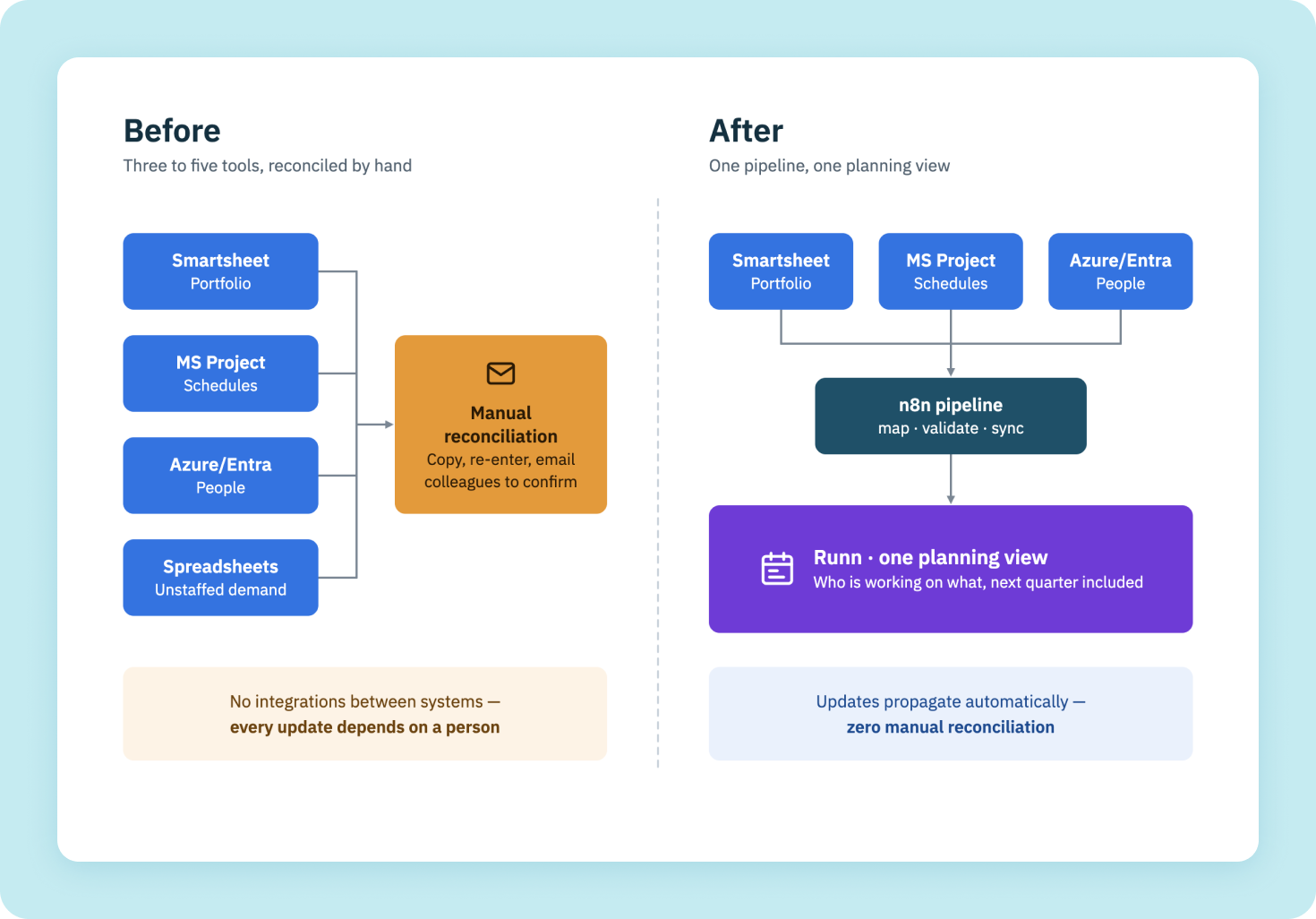
At our pharma client, project managers used three to five disconnected tools to plan work and manage people. With no integrations between them, every update depended on a person remembering to make it. If you’re still deciding which processes are worth automating first, our guide to business process automation readiness covers the checks to run before you scope anything.
Four ways to integrate a legacy desktop tool
Find the closest point where data can leave the application. Options include scheduled file exports, direct database reads, or a script inside the application, such as a VBA macro, that sends data to a webhook. A workflow engine like n8n then validates, transforms and routes that data to modern systems.
| Approach | How it works | Best when | Trade-offs |
|---|---|---|---|
| Manual or scheduled file exports | Users or a script export CSV or XML and another tool imports it | Low change frequency, short-term need | Data is always behind; format changes break imports quietly; still depends on people |
| In-app macro + webhook (e.g. VBA + n8n) | A script inside the desktop tool reads its data and sends it to a workflow engine | Tool has a scripting layer but no usable API; several downstream systems | Depends on the desktop app and macro environment; needs legacy language skills; needs error handling on both ends |
| iPaaS / prebuilt connectors | A hosted platform uses ready-made connectors between apps | Both ends have supported connectors; simple field mapping | Desktop legacy tools rarely have connectors; per-task pricing can grow; limited custom logic |
| Custom middleware / API layer | Engineers build a dedicated service that exposes or moves the data | Long-lived integration, high volume, strict control needs | Highest build and maintenance cost; slower to deliver |
| Alternative: replace the legacy tool | Migrate data and users to a modern platform | Tool blocks critical work, or is being retired soon | Largest change effort; integration may still be needed during the transition |
Scheduled file exports and import scripts
A user or a scheduled job exports a file and another system imports it. This is the cheapest way to start. The data is always behind, and when someone renames a column, the import can fail without anyone noticing.
In-app macro plus webhook
A macro-to-webhook connector is an integration pattern where a script inside a desktop application, such as a VBA macro in Microsoft Project, sends data over HTTP to a workflow tool like n8n. A webhook is a URL that waits for incoming data and starts a workflow when data arrives. This is the approach we used for MS Project in the case below.
iPaaS or prebuilt connectors
An iPaaS (integration platform as a service) connects apps through ready-made connectors on a hosted platform. It is fast when both ends have a connector. Legacy desktop tools rarely do.
Custom middleware or API layer
Engineers build a dedicated service that exposes or moves the data. You get full control over logic and performance, and you pay for it in build time and maintenance. It fits long-lived, high-volume integrations, which is where custom integration development earns its cost.
How to choose
Integrate when the tool still does its job, people depend on it, and replacement is more than a few months away. Replace it when it blocks critical work or migration costs less than maintaining connectors. Many teams do both: integrate first to unify the data, then migrate once that data lives in one place.
To narrow the options:
1If the tool has a supported API, use it.
2If not, check for a scripting layer or an export. That decides between macro plus webhook and file exports.
3Count the systems that need the data and how fresh it must be. More systems and fresher data point to a workflow engine.
4If the tool will be retired within a few months, consider migrating directly. If later, integrate now.
5Decide who maintains the integration after launch. With no clear owner, choose the simplest option.
How we connected Microsoft Project, Smartsheet and Entra ID to Runn
An enterprise pharma client had chosen Runn as its central capacity-planning platform. Runn did not cover the integration with the systems where project and resource data already lived, and that was the work we took on.
Project data sat in MS Project desktop, portfolio data in Smartsheet, and resource data in Azure/Entra (Microsoft Entra ID, formerly Azure Active Directory). Nothing kept them aligned, so managers had no reliable view of who was working on what. Every change was reconciled by hand, often by emailing colleagues across time zones.
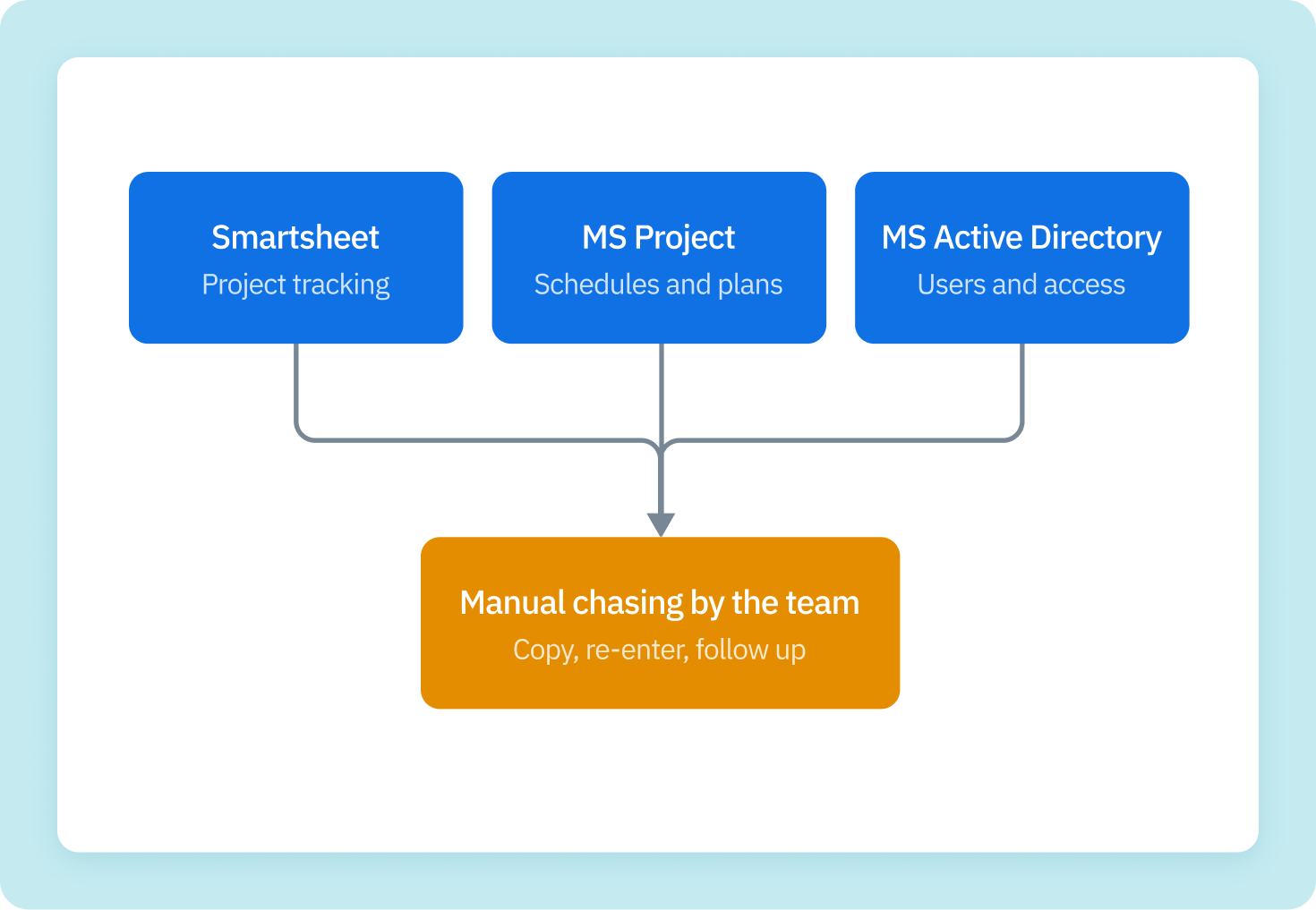
The hardest part was MS Project. The client runs it as a legacy desktop tool it plans to retire, and it offered no easy way to automate or integrate with it. Writing VBA macros was a mandatory dependency, in a language nobody on our team specialized in.
Our team had three people: Aleksandar, a senior automation and integration engineer; Andriana, project manager; and Mariana, QA specialist. The engagement ran from March to July 2026 on a fixed-price contract.
Mapping four systems before writing a workflow
Discovery came first. We mapped the four systems and defined how project and resource data should flow between them. Each system got one clear role:
- MS Project: task-level scheduling data
- Smartsheet: portfolio system of record
- Azure/Entra: resource data
- Runn: central capacity-planning platform and the destination for consolidated data
We then built an event-driven sync pipeline in n8n. An event-driven sync pipeline is an integration that moves data when something changes, such as a webhook firing after an assignment update, rather than waiting for someone to export and import files. Smartsheet and Azure/Entra were connected through custom API integration work.
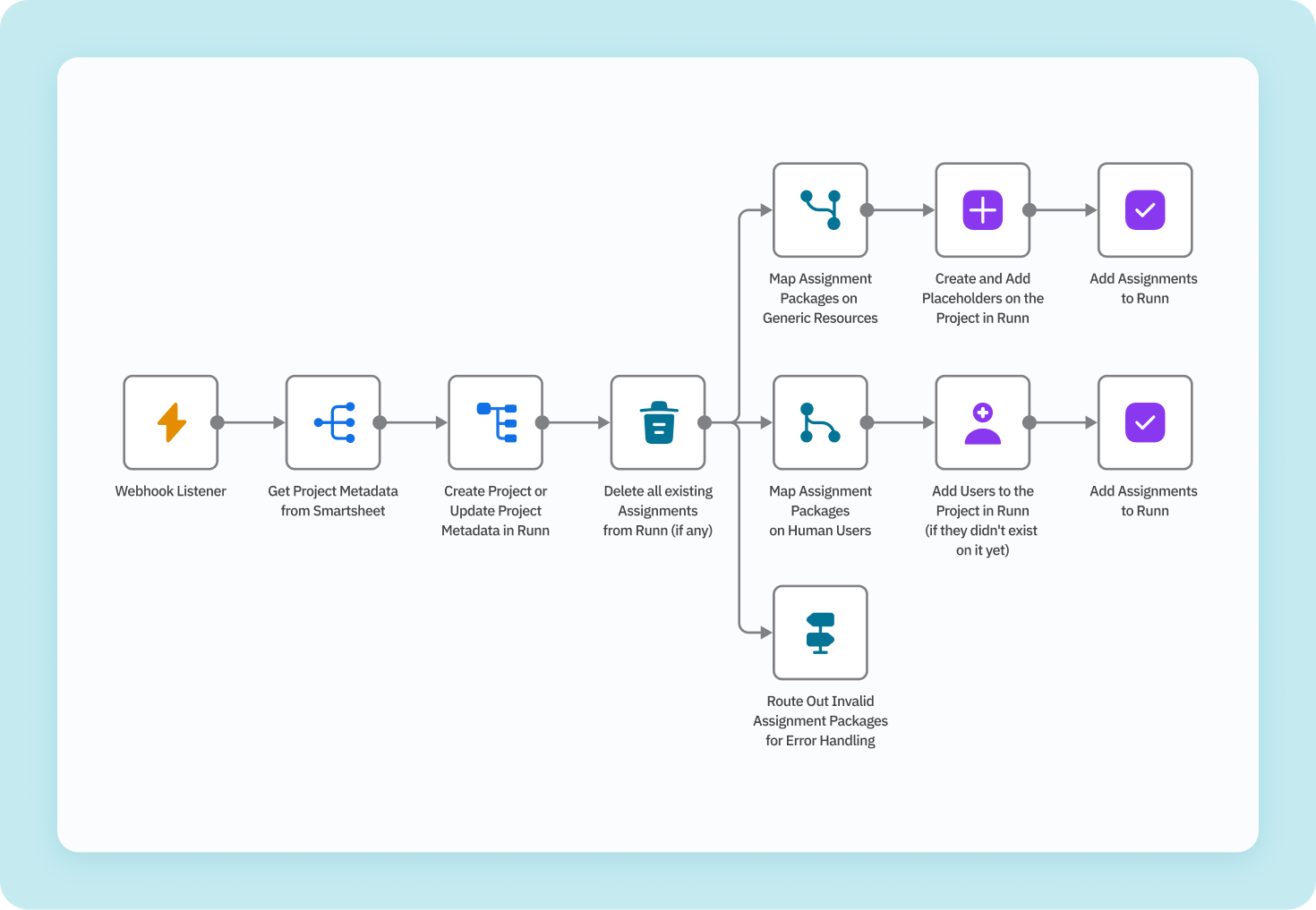
Getting data out of MS Project with a VBA macro and an n8n webhook
Microsoft Project desktop can be automated, but not through a modern cloud API. It exposes its data to VBA, so a macro can read tasks, assignments and schedules and pass them to another system. In this project, a purpose-built VBA macro and an n8n Webhook extract task-level scheduling data for processing.
That connector brought previously siloed project data into the pipeline for the first time. VBA was not our choice by preference. It was the only practical route the application left open, and we treated it as a dependency to test as carefully as any other system.
One data model for named people and role-based placeholders
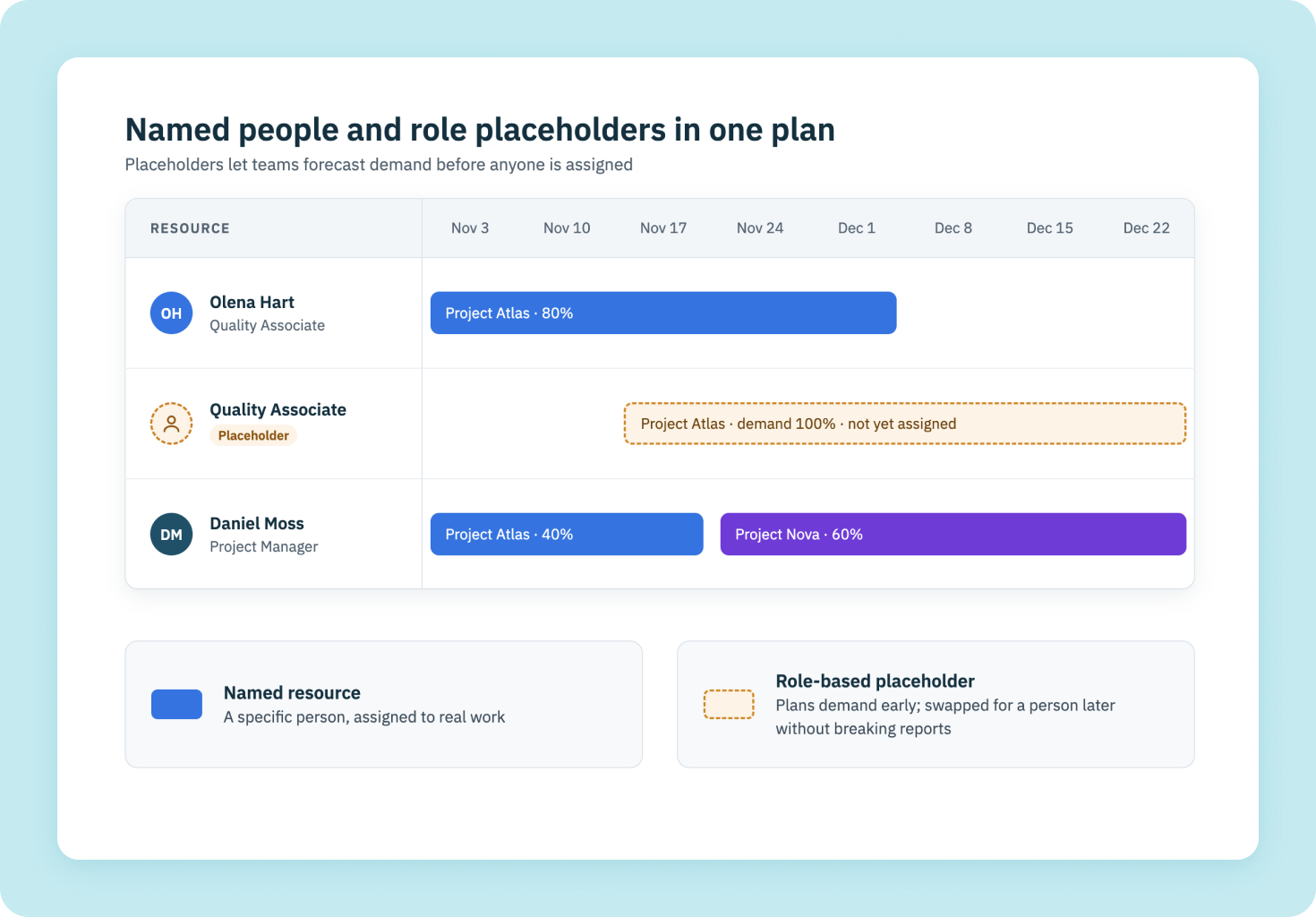
A generic resource is a role-based placeholder, such as “Quality Associate”, used to plan demand before a specific person is assigned. A nominative resource is a named individual. Integration pipelines need to handle both, so teams can forecast workload early and later replace placeholders with real people without breaking reports.
Our pipeline standardizes data from all three sources into a single model before it reaches Runn. It maps named individuals and creates role-based placeholders. The lesson we took from this: placeholders are a data-model decision. If the model does not account for them from day one, early planning data ends up in a side spreadsheet again.
Validation before anything reaches Runn
Invalid assignment packages are routed out of the flow for review, so bad data never reaches the target system. We chose to validate before the target rather than clean up after it. An error that stops in a review queue is visible to a person. An error that lands in the planning tool quietly overwrites a good record.
Three ways to trigger a sync
- A webhook listener starts the workflow when data arrives.
- The workflow runs on a schedule.
- A manager triggers a data consolidation manually.
What changed for the client
Resource updates now propagate to Runn automatically across four systems, with no manual reconciliation. Project and resource data consolidate into a single planning view that replaced three to five disconnected tools. Managers no longer email colleagues to keep records aligned.
We delivered within budget on the fixed-price contract and adapted scope as requirements evolved. As Aleksandar put it:
Working with legacy technology inside a large enterprise environment sharpened how we scope and approach the next integration like it.
Aleksandar Bogdanovski, Senior Automation Engineer
The full story is in our case study on connecting four enterprise systems with n8n.
Using AI to write VBA nobody on the team specialized in
AI coding assistants can draft and debug VBA, which helps when a team needs a rarely used legacy language for one project. VBA is a dated scripting approach, and hiring a specialist for one connector rarely makes sense. Ralabs engineers closed that narrow gap by using AI to help author and troubleshoot the VBA macro for the Microsoft Project integration.
The risk does not go away. It moves to testing. Each generated macro still needs to be checked against real project files, and with AI-written code in a legacy language, that QA carries more weight. That is why our QA specialist was part of the team from the start.
Is n8n ready for enterprise integration?
n8n suits enterprise integration when workflows need custom logic, code steps in JavaScript or Python, and the option to self-host. It fits teams that want simple, maintainable pipelines instead of heavy middleware. It is a weaker fit when nobody will own monitoring, error handling and updates after launch.
Our client’s choice backs this up. Fit-for-purpose and simplicity drove the decision, alongside cost. A more powerful competing approach had already been rejected as too complex and expensive for the value it added. Our view: in integration work, the smallest pipeline that does the job usually beats the most capable platform.
Our automation practice is led by Roman Rodomansky, COO and Co-Founder of Ralabs and an official n8n Ambassador. Roman organized Valencia’s first n8n meetup (nearly 100 attendees, 160+ sign-ups) and a follow-up mini-hackathon with 80 builders across 16 teams. That community work feeds into how we approach AI business process automation for clients.
A step-by-step plan for your own legacy integration
Decide which system owns each type of data, then sync the others to it automatically. Map every source, agree on one data model for people, roles and assignments, and build a pipeline that validates updates before they reach the central planning tool. Manual edits in secondary tools should stop.
1Inventory every tool that holds project or people data.
2Pick the system of record for each data type.
3Find each tool’s exit point: API, database, export or in-app script.
4Define one shared data model, including placeholder roles.
5Build validation and an error route before the main flow goes live.
6Choose triggers: event, schedule, manual.
7Run user acceptance testing (UAT) with real project managers, then go live.
8Plan support and the eventual migration off the legacy tool.
Governance matters as much as the workflow. On our project, a three-person team ran two standing weekly calls: one technical, one for roadmap and blockers. A RACI matrix and risk register were in place early, and work moved in Kanban-style increments through UAT and go-live.
Integration now, migration later
Legacy system integration keeps the old system running and connects it to modern tools. Modernization replaces or rebuilds it. Integration is faster and lower risk in the short term, and it prepares for modernization: once data flows through one pipeline, replacing the legacy source changes one connector instead of every downstream tool.
Timing makes this relevant now. Microsoft retired Project Online on September 30, 2026, and states that Project desktop is not affected (Project Online retirement announcement). Teams moving off the cloud service may land on desktop files that need integrating.
Our client plans to retire its legacy tool, and the pipeline makes that move simpler. We continue to provide ongoing support for integrations for the client.
The bottom line
A legacy tool with no API can still feed modern systems. Find its exit point, agree on one data model, and validate before data lands in the target. Integrating first gives you one connector to swap when the old tool finally goes.
Bring in a partner when the exit point needs a skill your team lacks, such as VBA, or when more than two systems depend on the same data and nobody owns keeping them aligned.

Tell us about your workflow. We’ll tell you what’s automatable, what isn’t, and what a realistic build looks like.
at Ralabs
FAQ
What is legacy system integration?
Connecting older software a business still relies on with modern applications so data moves automatically. The legacy system stays in place, and connectors are built around it.
How do you integrate an application with no API?
Use the closest exit point: file exports, database access, or an in-app script such as a VBA macro that sends data to a webhook. A workflow tool like n8n then routes and validates it.
Can n8n connect to Microsoft Project desktop?
Yes, through a VBA macro inside Microsoft Project that sends data to an n8n Webhook node. n8n then transforms the data and passes it to other systems.
Is Microsoft Project desktop being retired?
Microsoft retired Project Online on September 30, 2026. Microsoft states that Project desktop, Project Server and Planner are not affected by that retirement.
What is the difference between named and generic resources?
Named resources are specific people. Generic resources are role-based placeholders used for early planning. A good integration handles both.
How long does a legacy integration project take?
It varies. One Ralabs project connecting four systems took about four months on a fixed-price contract, including UAT and go-live.
Should we integrate or replace our legacy tool?
Integrate if the tool still works and replacement is not imminent. Unifying the data first also makes a later migration simpler.